




RoboForex Broker Registration
Registration on the RoboForex broker website.
- Click on your partner's link.
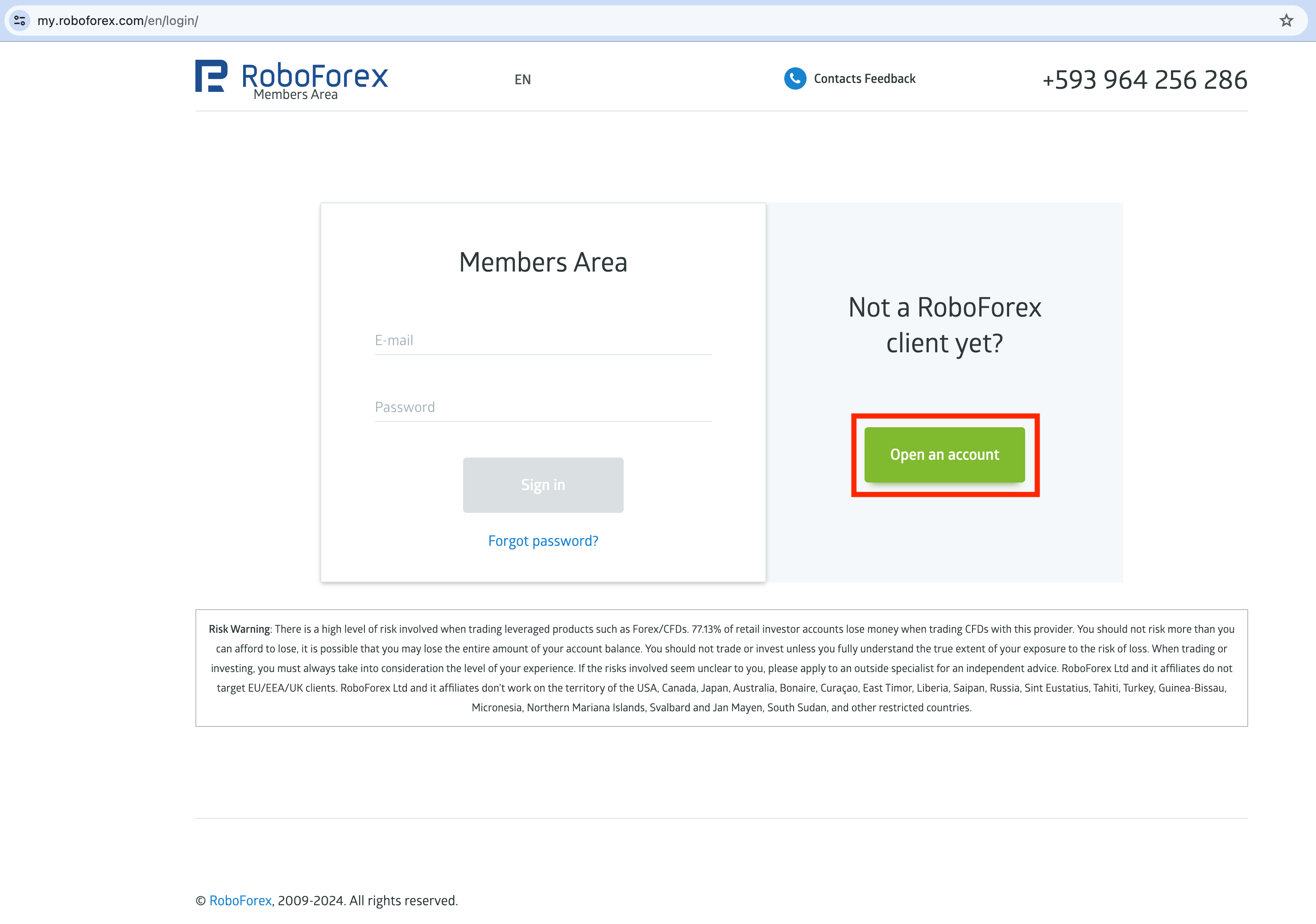
- Click on the green button "Open an account".
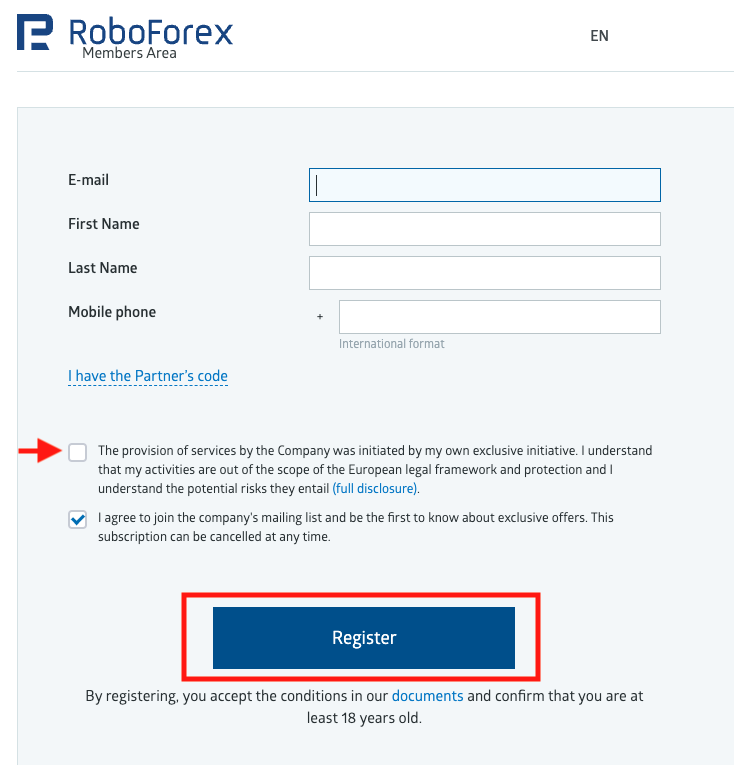
- Enter your e-mail, first name, last name in Latin letters and mobile phone number in the international format.
- Tick the first checkbox (mandatory).
- If you would like to get the mailings with offers from the company, you can also tick the second checkbox (not mandatory).
- Click the "Register" button.
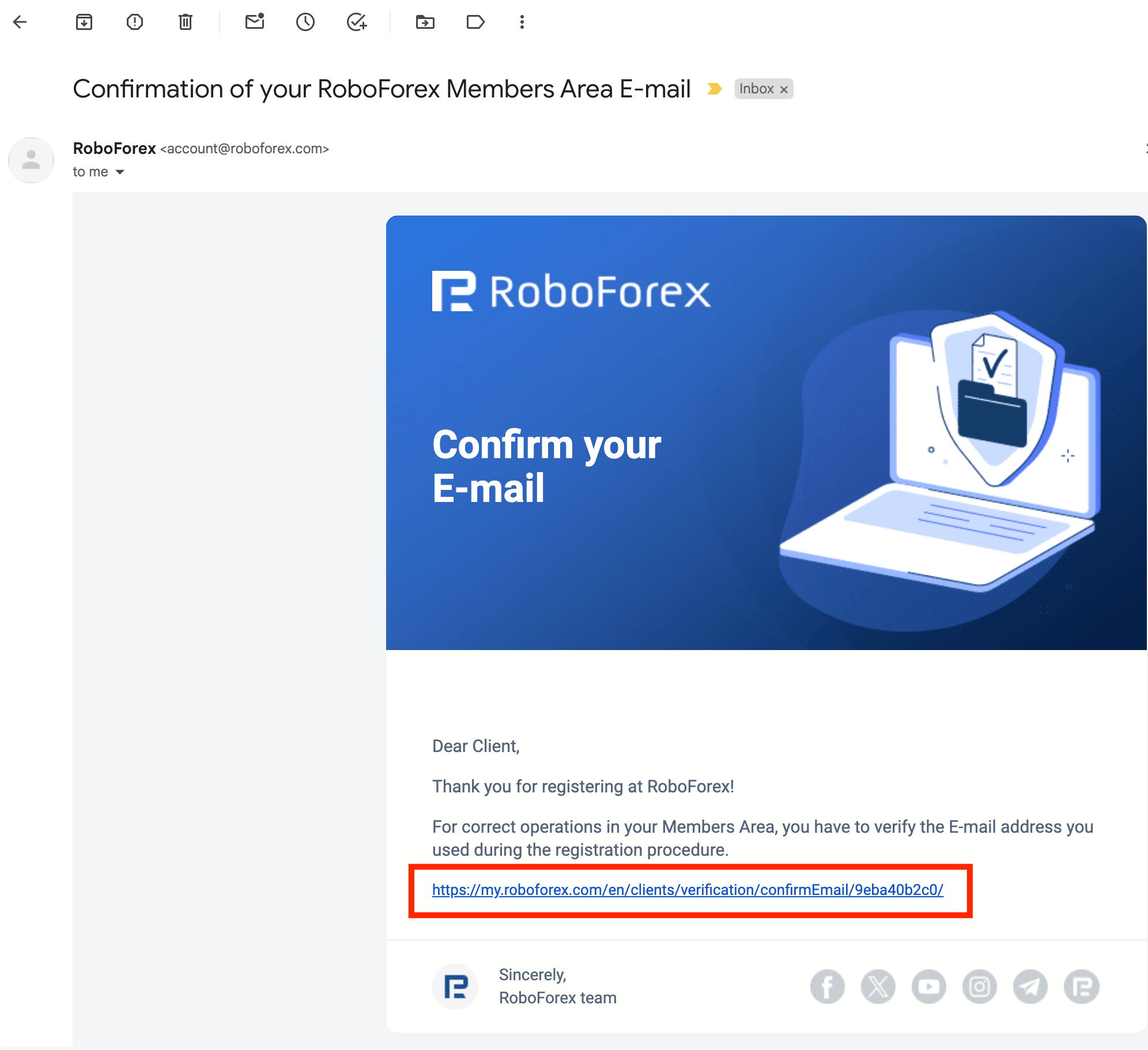
- Check your e-mail (the one you entered in the previous step). You should have received the registration confirmation from RoboForex.
- If you don't see the confirmation in your inbox, check the "Spam" folder.
- Click the link in the confirmation e-mail to verify your e-mail address.
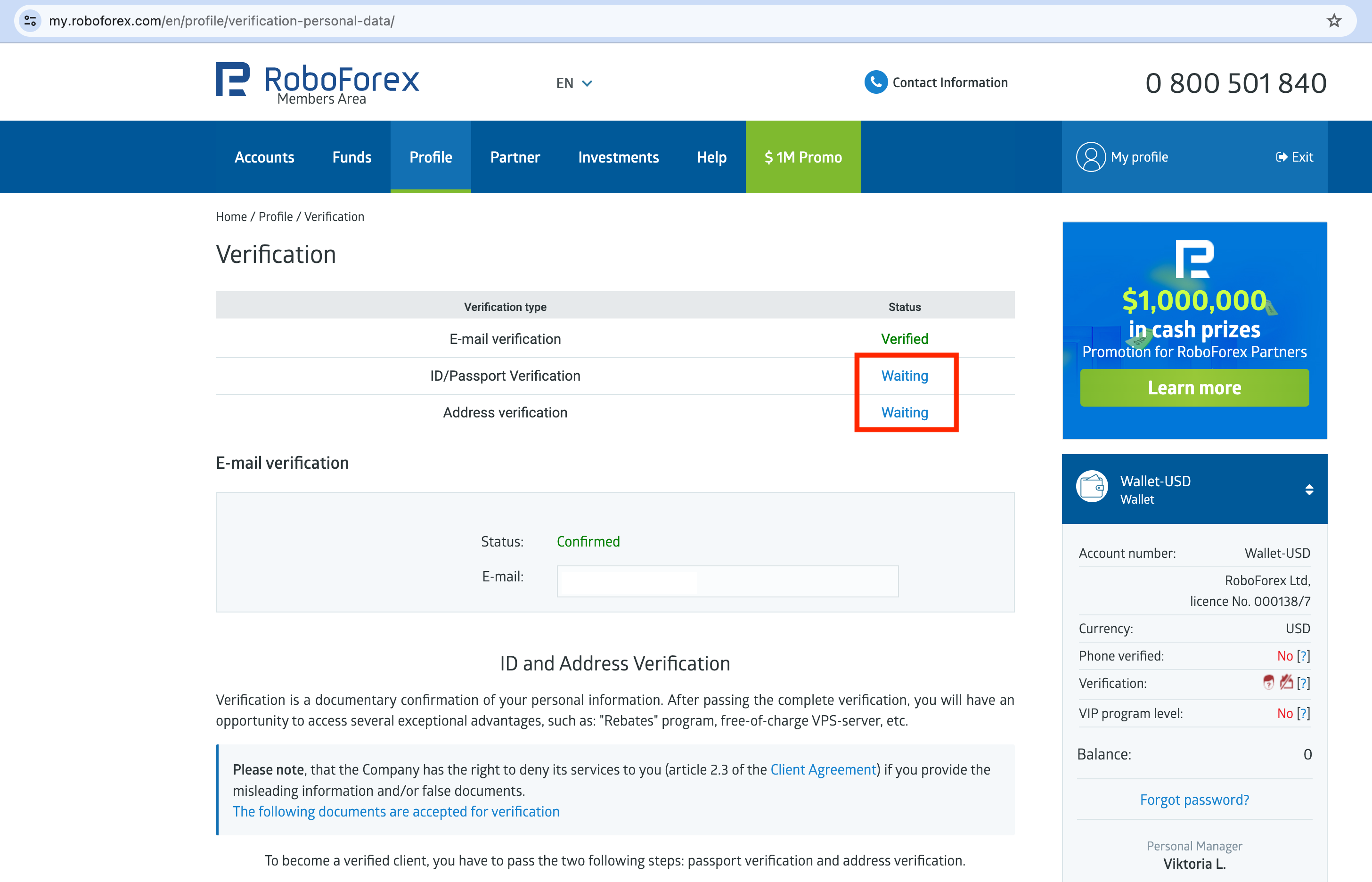
If the e-mail verification succeeded, you'll see that your e-mail is verified in your profile under verification section.
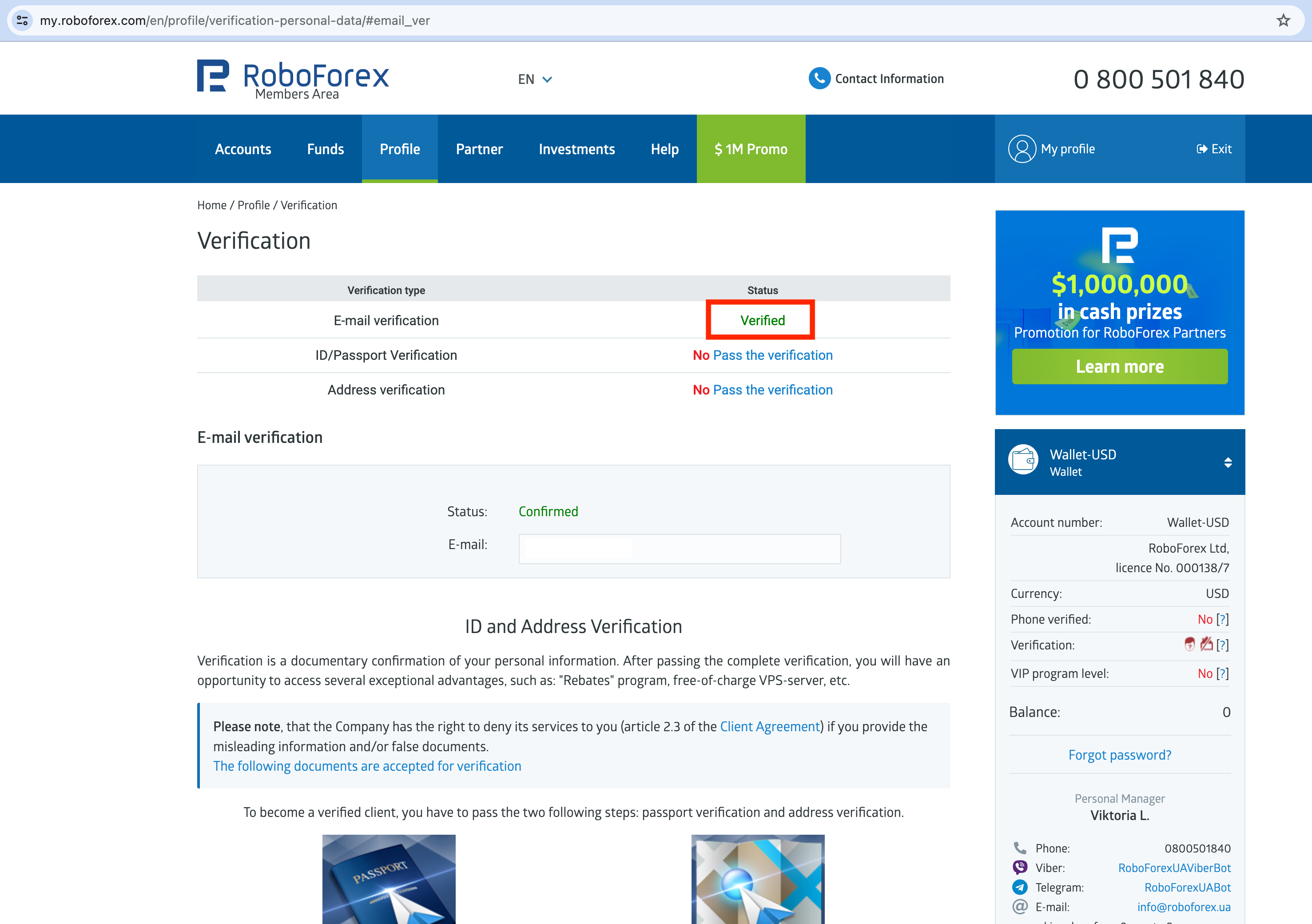
- You also need to verify your ID and address.
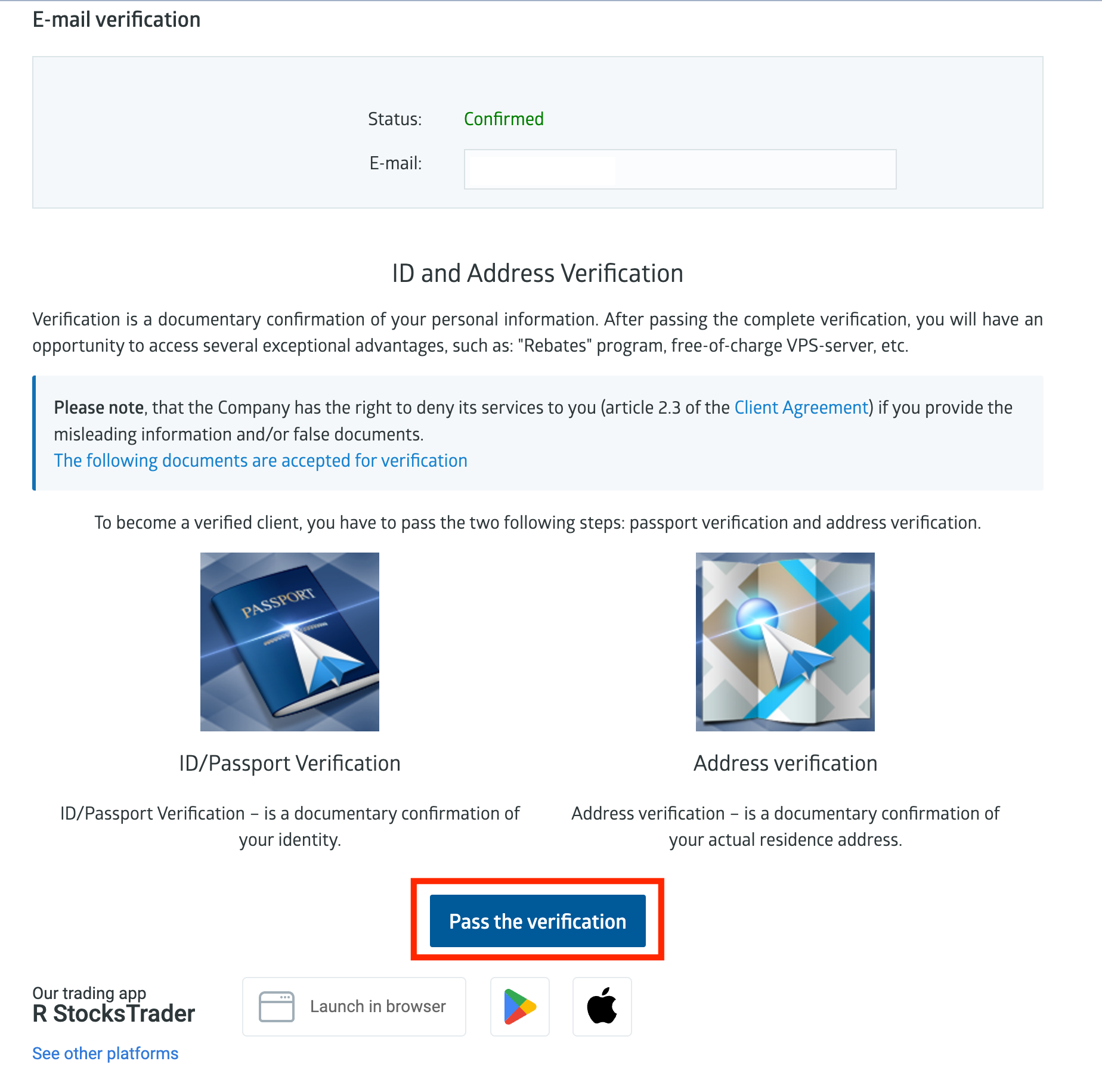
- Scroll down and click the blue button "Pass the verification".
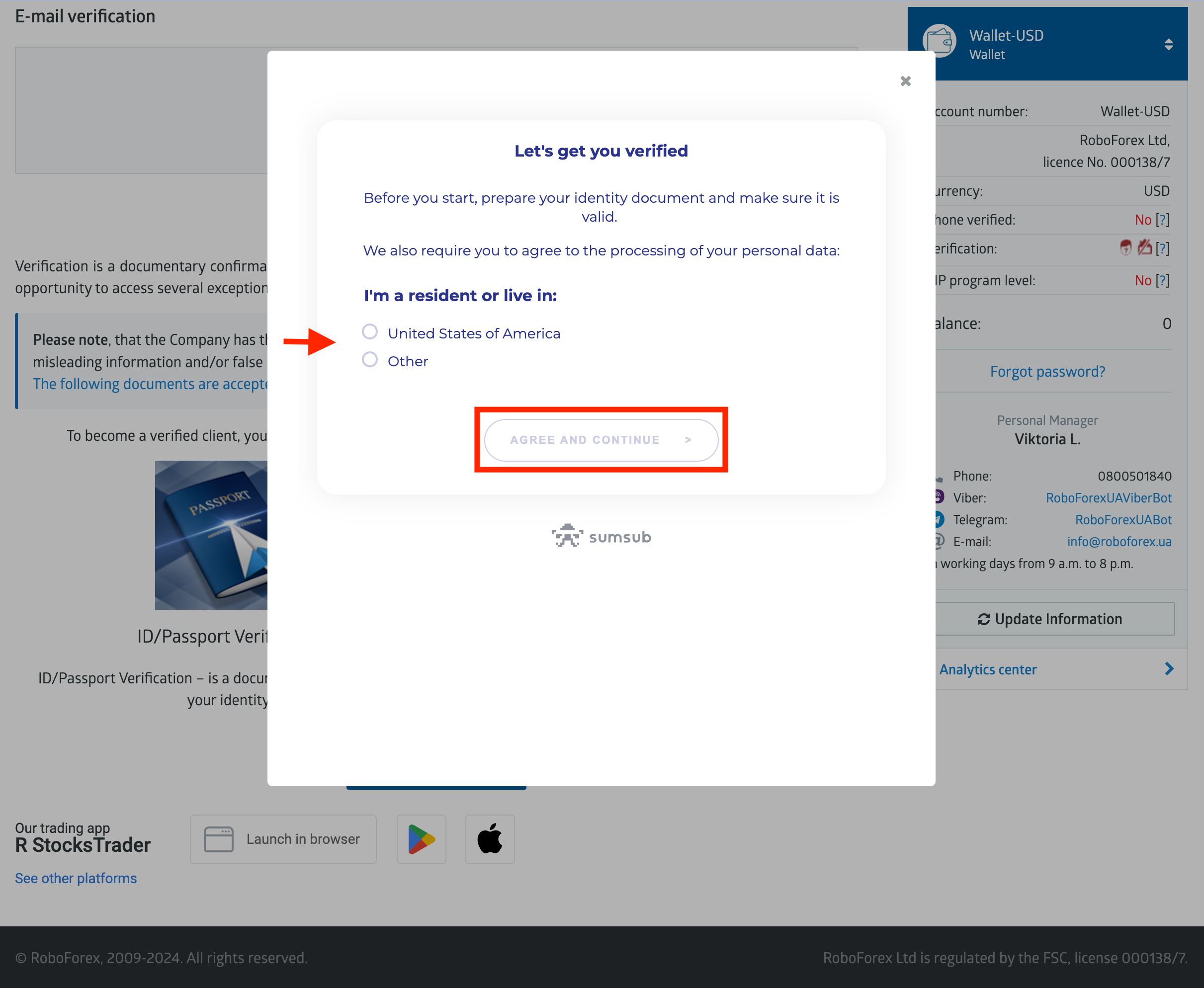
- In the pop-up choose "United States of America" if you are a resident of the USA. Otherwise, choose "Other".
- Click "AGREE AND CONTINUE" button.
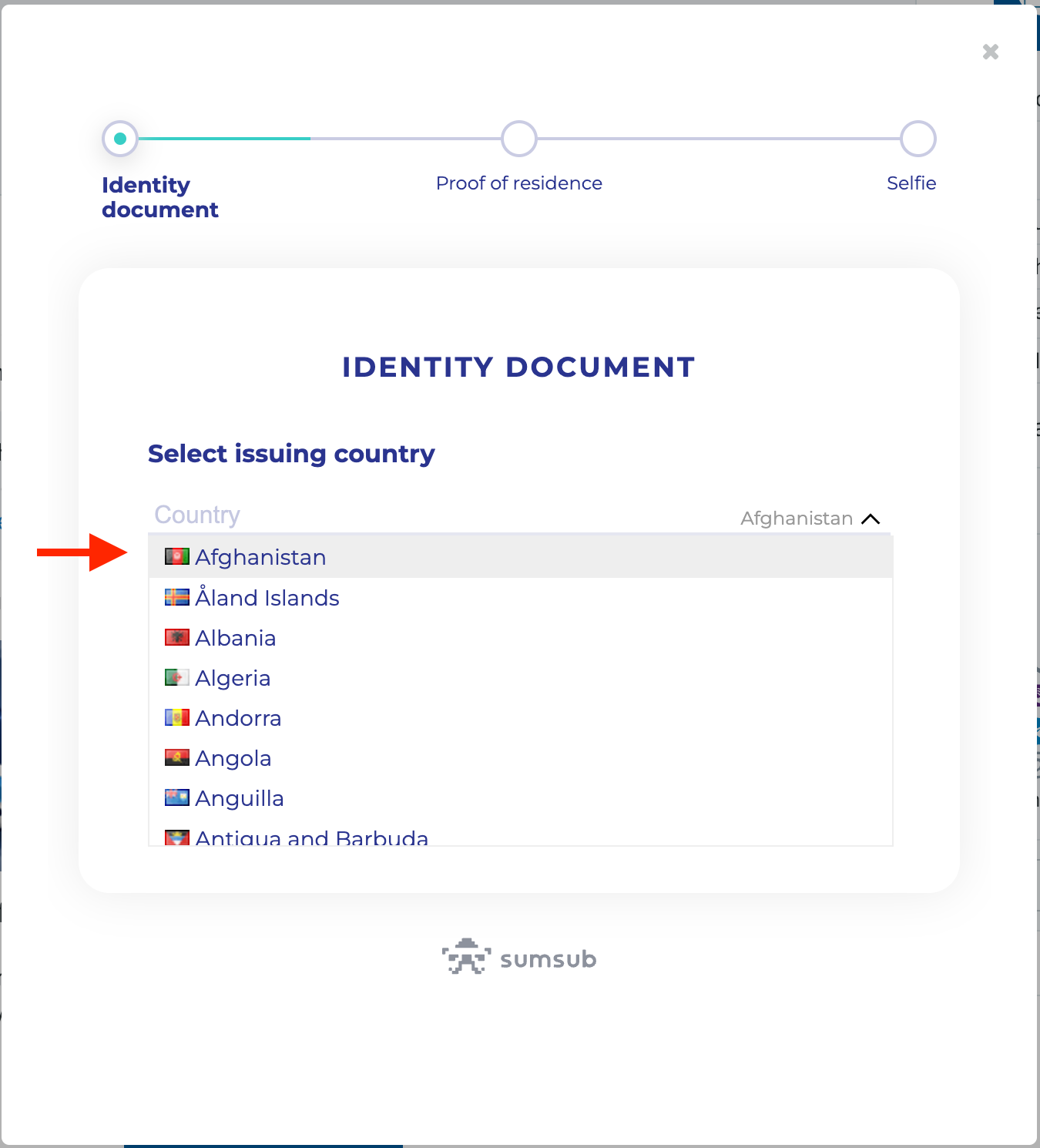
- Prepare your documents (the following is accepted: Identity Card, National Passport, International Passport, Residence Permit, Driving License).
- Choose the issuing country of your ID.
- Scroll down.
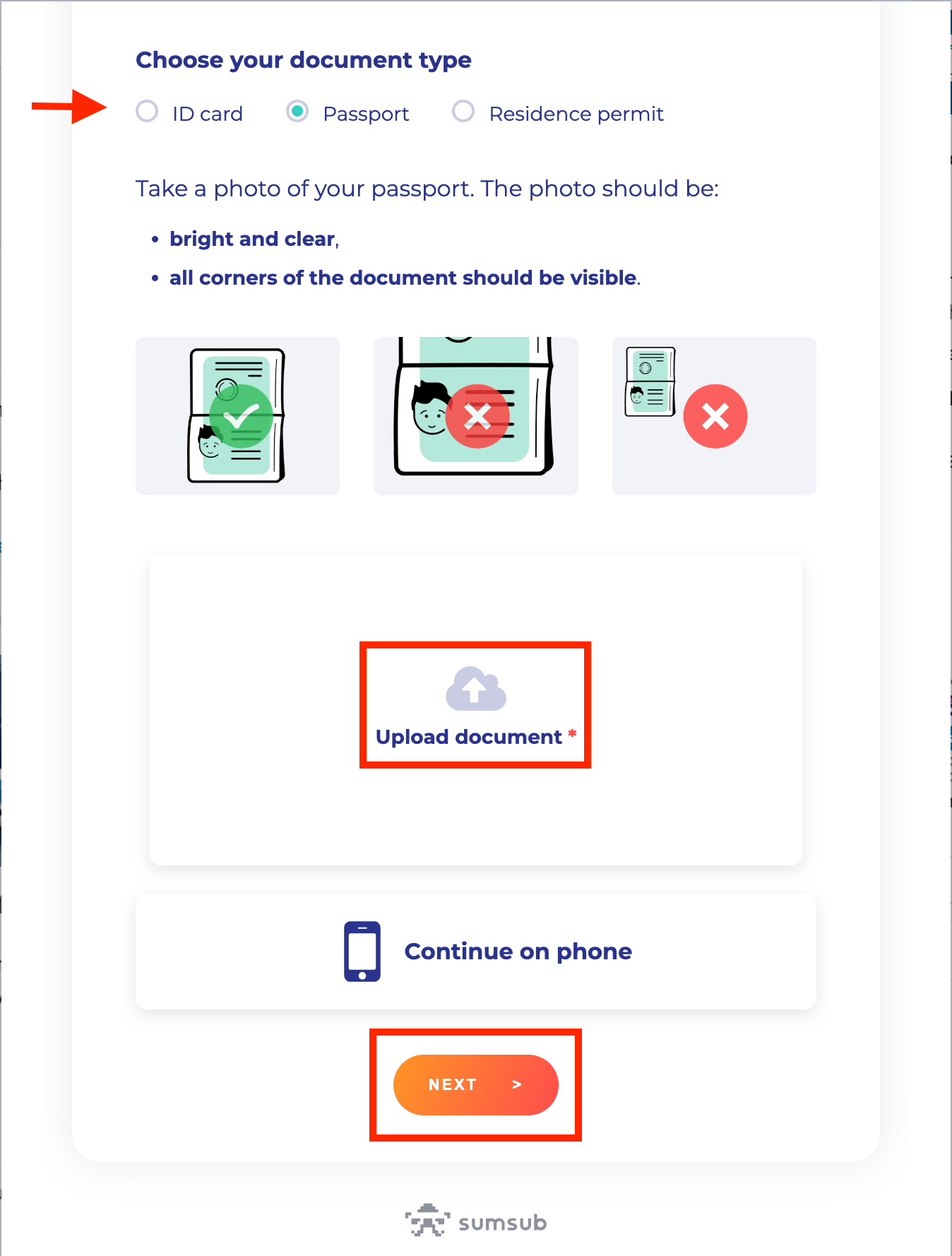
- Choose the type of your ID.
- Take a photo of your ID and store in on the device you are using for registration.
- Upload the photo either by drag-n-drop or by clicking on the field "Upload document" and selecting it on your device.
- Click the "Next" button at the bottom.
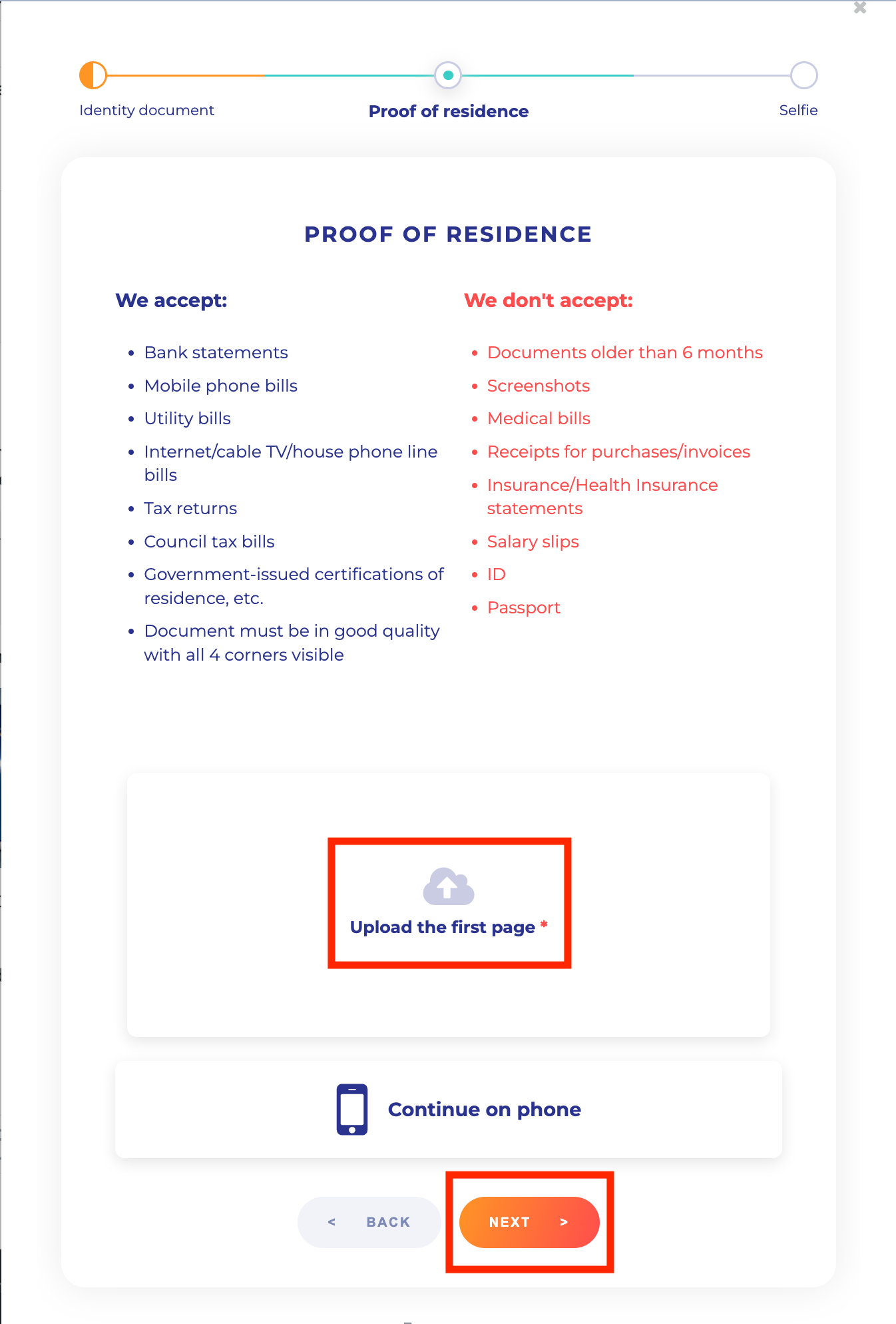
- Prepare your proof of residence document which must be not older than six months (the following is accepted: bank statements, mobile phone bills, utility bills, tax returns, council tax bills, government-issued certifications of residence). You need only the first page with your current address stated there.
- Take a photo of the document and store in on the device you are using for registration.
- Upload the photo either by drag-n-drop or by clicking on the field "Upload the first page" and selecting it on your device.
- Click the "Next" button at the bottom.
- During the next step you will need to make a selfie, follow the instructions you will see on the screen.
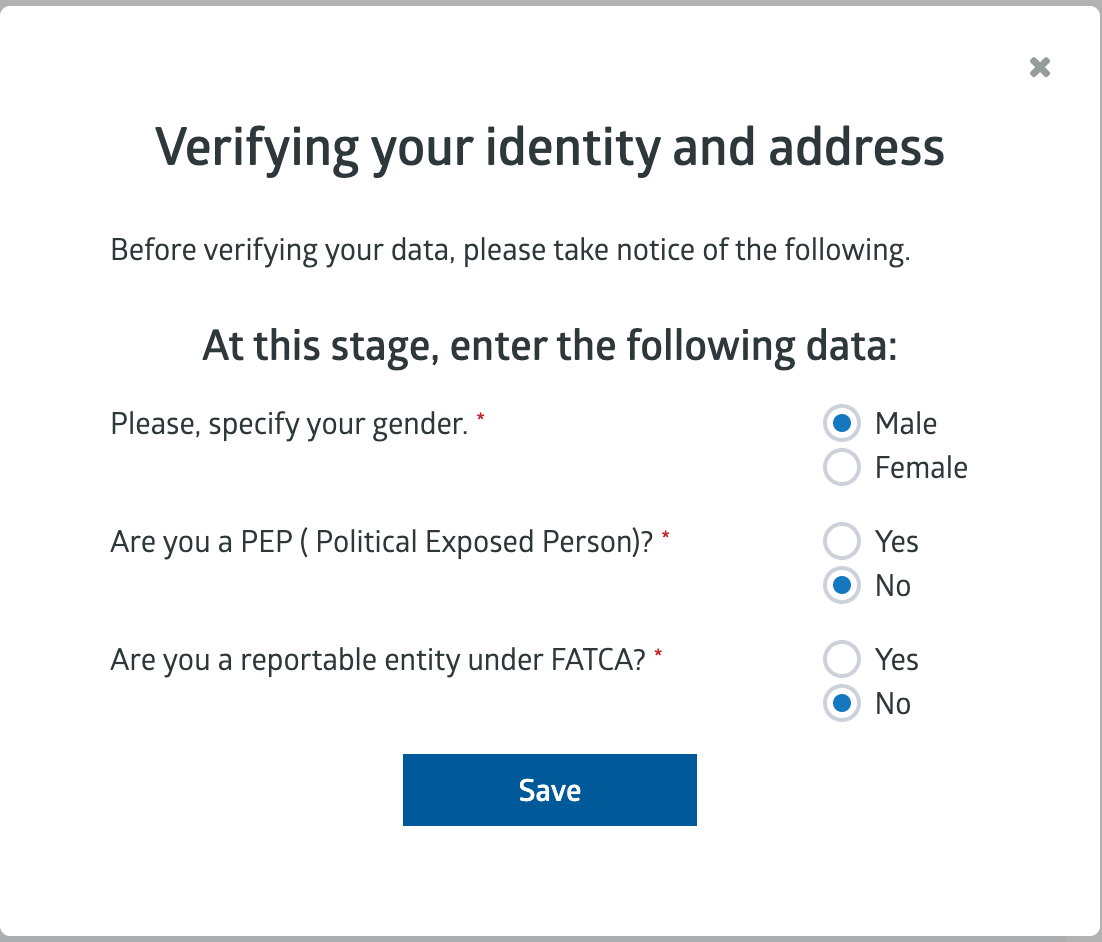
- On the next screen specify your gender, if you are a political exposed person and if you are reportable under FATCA.
- Click "Save" button.
- In your profile under Verification section you will see that your ID and Address Verification changed status to "Waiting".
- Verification can take some time and you will receive an e-mail notification from RoboForex whether you passed it or not.